Apple Mail on iPhone
Use the action you already know.
Choose private Junk review for the easiest phone workflow, or a dedicated reporting folder for the narrowest mailbox access.
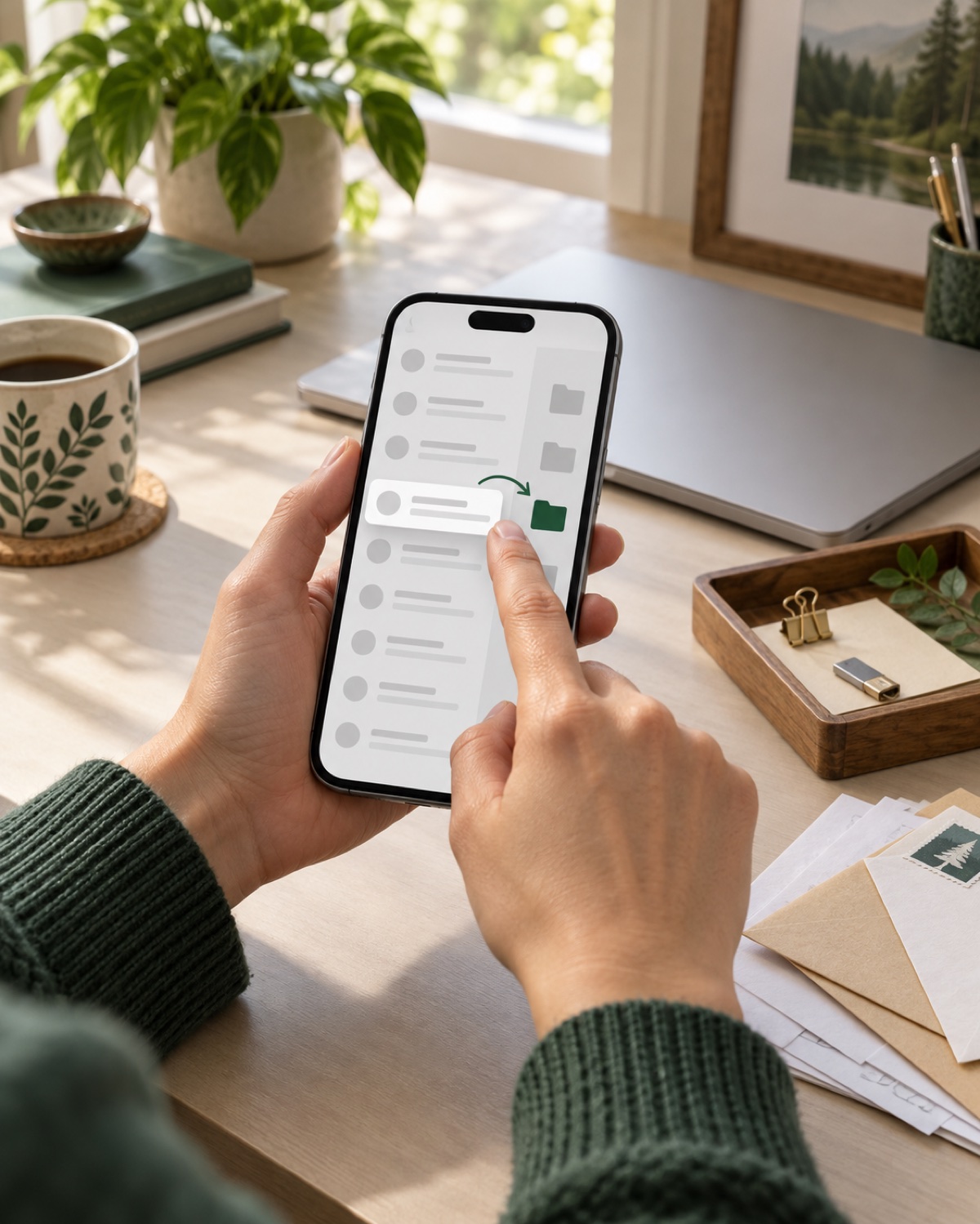
Option one: Junk review
- In Apple Mail, swipe or use the message actions and choose Move to Junk.
- The mail provider places the original in its server-side Junk mailbox. Apple Mail does not create a separate local copy.
- Open the Meilo workspace in Safari. Remove false positives with Ignore, then choose Process this message for the candidates you want analyzed.
This mode is convenient when Junk is already the place you classify unwanted mail. Meilo can preserve and analyze a candidate privately, but the filtering action alone never authorizes an outside complaint.
Option two: dedicated reporting folder
- Open the suspicious message without opening its links or attachments.
- Tap Move and choose Report to Meilo under the same mail account.
- Select several messages from the message list when you want to report a batch.
This mode gives Meilo the smallest practical source: one purpose-built folder containing only messages you deliberately moved.
Why the folder may not appear
Folders belong to the mail provider, not to the iPhone itself. Confirm that you are viewing the same account, open Mailboxes, tap Edit and enable the server folder if it is hidden. In Junk-review mode no custom folder is required; use the account's ordinary Junk mailbox.
What Meilo can see
The selected source applies per connected mailbox. A connection to one address does not authorize a different address. Gmail and Microsoft accounts require their own provider consent, while an XXV Mail connection can be activated directly by the account owner.